
Trigger Mode lets you assign chords to trigger pads and play them with a single note. It’s ideal for live performance, songwriting, or building
chord progressions quickly.
You can fill the chord trigger slots manually or generate progressions automatically using the Harmony Engine.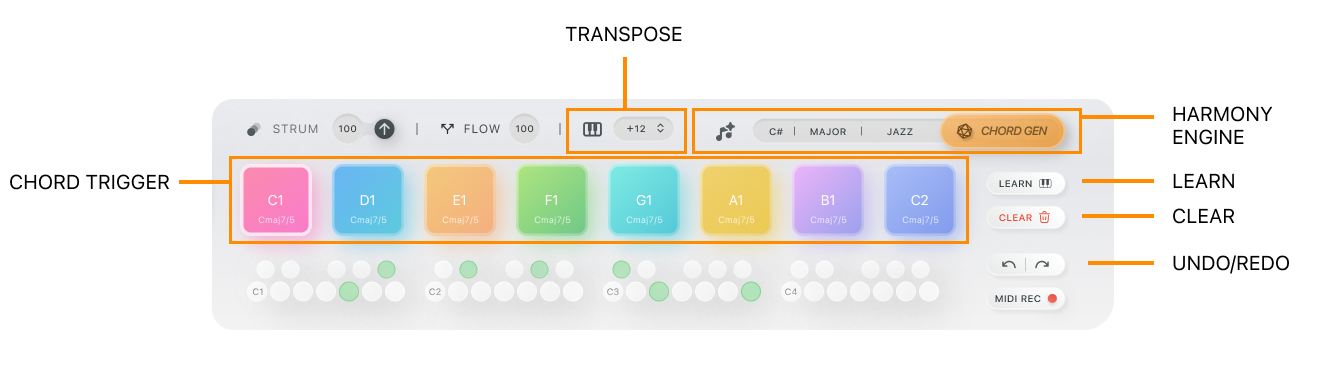
Using Trigger Mode:
You can set up chord triggers in two main ways:
Learn Chord:
● Click the Learn button to start assigning chords manually.
● Play a chord on your MIDI keyboard or on-screen keyboard—FluidChords2 will capture it and assign it to the next available slot.
● Continue playing chords one by one to fill up the trigger slots.
● Use the Clear button to remove all assigned chords if you want to start fresh.
Harmony Engine:
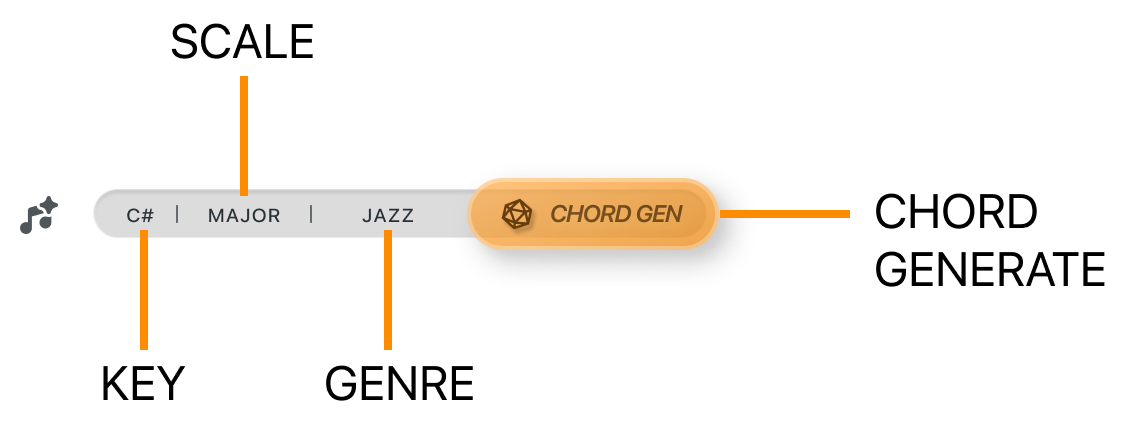
● Choose your Key, Scale, and Genre using the Harmony Engine section.
● Click Chord Gen to automatically generate a progression based on your selections.
● This is a quick way to create musical chord sets without playing them manually.
Trigger Controls:
● Undo / Redo: Instantly revert or redo your last action when working with chord triggers or the Harmony Engine.
● Transpose (Global): Shift all chords in the trigger slots up or down to quickly try out different keys.
Right-Click Options (per chord trigger):
Right-clicking on any individual chord trigger opens a menu with advanced options:
● Learn Chord: Assign a new chord to this specific trigger.
● Clear Chord: Remove the chord assigned to this trigger.
● Randomize Chord: Instantly assign a random chord to that trigger.
● Lock Chord: Prevents the Harmony Engine from modifying this specific chord.
● Copy / Paste: Copy one chord trigger and paste it to another location.
● Transpose: Shift the selected chord up or down in pitch.