
Logic Pro (AU MFX)
1. Load Fluid Chords 2 MFX: Load Fluid Chords 2 MFX directly into the MIDI FX slot on your instrument track.
2. Record MIDI Output:
○ If using Logic Pro 10.7.5 or above, right-click on the MIDI FX and select ‘Record MIDI to Track Here’.
○ This feature allows you to record Fluid Chords 2’s MIDI output directly into the MIDI track.
3. Control Your Instrument: You can now control your instrument directly using Fluid Chords 2 MFX in Logic Pro.
4. Additional Feature: Right-click to record the MIDI output to track directly, which is a powerful feature for further MIDI manipulation.
Ableton Live (Standalone)
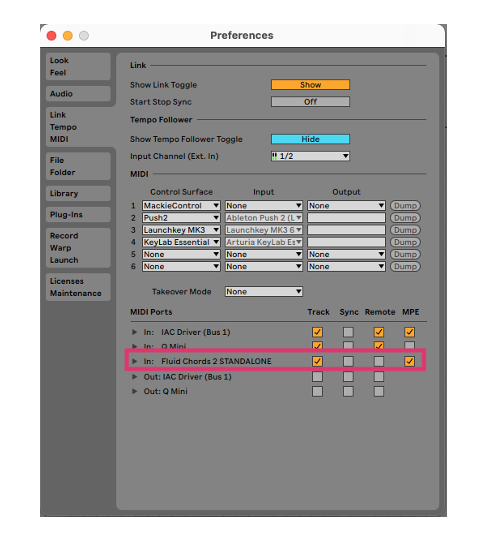
Ableton Live does not support MIDI routing with MPE between tracks. To use FluidChords2 for recording MPE in a new MIDI track, please use the standalone version.
Using FluidChords 2 Standalone with Ableton Live (for MPE Recording)
To record MPE data from FluidChords2 into Ableton Live, follow these steps to set up the standalone version:
1. Open FluidChords 2 Standalone.
Launch the standalone version of FluidChords2 on your computer.
2. Go to Audio & MIDI Settings.
At the top of the standalone app, open the Audio & MIDI Settings panel.
3. Locate MIDI Output.
Under the MIDI Output section, you’ll find an output labeled something like: “FluidChords2 Standalone” — this acts as a virtual MIDI port.
4. Open Ableton Live.
Launch Ableton Live and go to Preferences > Link/MIDI.
5. Enable the MIDI port.
In the MIDI Ports section, find the “FluidChords 2 Standalone.” Make sure to enable both:Track & MPE
6. Create a New MIDI Track in Ableton.
○ Set its MIDI From to: FluidChords2 Standalone
○ Arm the track for recording.
7. Record or perform with MPE.
You can now control any instrument in Ableton Live using FluidChords 2. MIDI data, along with MPE information, can be recorded and viewed in the MIDI clip under the MPE tab in the clip editor.
Cubase (VST3)
1. Load Fluid Chords 2 VST: Load the Fluid Chords 2 VST 3 version onto an instrument track. (No need to use the MFX version for
Cubase users.)
2. Load the Instrument: Load the instrument you wish to control on a second track.
3. Configure MIDI Routing: Route the MIDI out of Fluid Chords 2 to the instrument by changing the MIDI input of the second track to “Fluid Chords 2”.
4. Arm the Fluid Chords 2 Track: Arm the Fluid Chords 2 tracks to receive MIDI from your controller and turn on monitoring for the
controlled track.
Pro Tools (AAX)
1. Create an Instrument Track: Create a new instrument track (Pro Tools 2024.3 onwards).
2. Load Fluid Chords 2 MFX: Load your MIDI FX plugin, Fluid Chords 2 MFX, in the first insert slot of the instrument track.
3. Load the Instrument Plugin: Load the instrument you wish to control in the second insert slot of the same instrument track.
4. Configure MIDI Routing: Pro Tools automatically routes MIDI from the first slot (MIDI FX) to the second slot (Instrument).
5. Arm the Track: Arm the instrument track to receive MIDI input from your controller.
6. Enable Monitoring: Turn on monitoring for the instrument track to hear the output.
Studio One (VST MFX)
1. Load Fluid Chords 2 MFX: Load Fluid Chords 2 MFX on a new instrument track.
2. Load the Instrument: Load the instrument you wish to control on a second track.
3. Show MIDI Selection Boxes: Drag the track window down to show all the MIDI selection boxes.
4. Configure MIDI Routing:
○ In the MIDI input section, select “Fluid Chords 2 MFX” as the “Instrument Input”.
○ Select “MIDI Output 1” as the “Instrument Channel”.
5. Arm the Fluid Chords 2 Track: Arm the Fluid Chords 2 track and turn on monitoring for the controlled track.
FL Studio (VST MFX)
1. Load Fluid Chords 2 MFX: Find Fluid Chords 2 MFX and load it onto a MIDI track.
2. Load the Instrument: Load the instrument you wish to control on a different track.
3. Configure VST Wrapper Settings:
○ Click the COG WHEEL button on Fluid Chords 2’s panel, open the VST Wrapper settings, and set the output to 1.
○ Similarly, click the COG WHEEL button on the instrument’s panel, open the VST Wrapper settings, and set the input to 1.
4. Send MIDI Signals: Now you can send MIDI signals through Fluid Chords 2 to your favorite synths and samplers in FL Studio.
Reaper (VST MFX)
1. Load the Instrument: Load the instrument you want to control.
2. Load Fluid Chords 2 MFX: Click “IN FX” and select Fluid Chords 2 MFX.