
Number of activations
Each Pitch Innovations license can be active on up to two devices at the same time. For example, you can use your plugins on your main studio computer and on a secondary laptop or desktop.
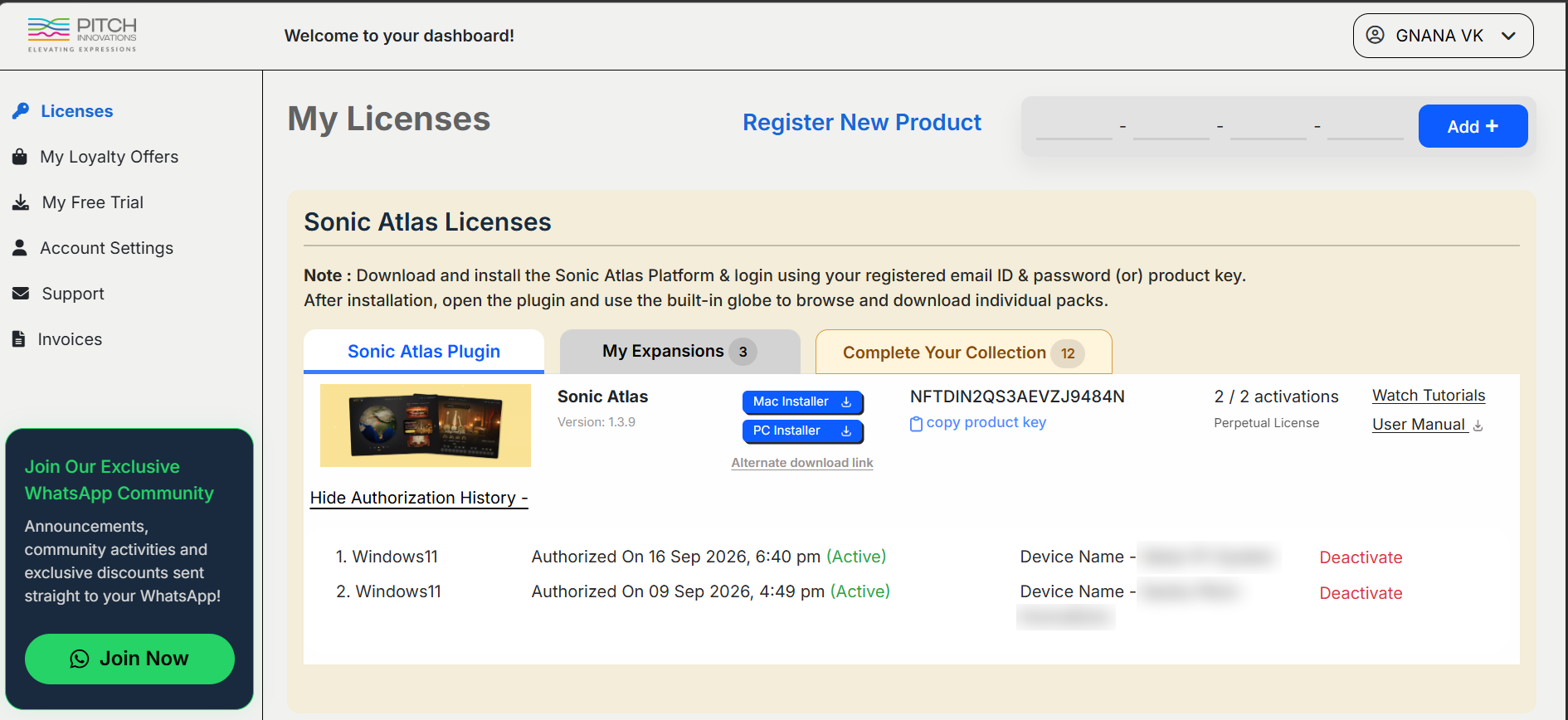
You can see how many activations you’ve used at any time on your dashboard, next to your product key (for example, “1 / 2 activations”).
Activating your plugin(s)
- Download the installer for your operating system (Mac or PC) from your account dashboard.
- Install and open the plugin.
- Log in using your registered email ID and password, or your product key.
Once activated, the device will appear in your Authorization History and your plugins will be ready to use.
Deactivating your plugin(s)
If you’ve used both activations and want to move to a new computer, deactivate one of your existing devices first:
- Log in to your account and go to Licenses.
- Click “View Authorization History” under your product.
- You’ll see every device your license is active on, along with the operating system, device name and activation date.
- Click “Deactivate” next to the device you no longer use.
The activation is freed immediately, and you can activate the plugin on your new device.
Tips
- Deactivate a computer before selling it, replacing it, or reinstalling its operating system, so you don’t lose an activation to a machine you can no longer access.
- If a device is lost or no longer works, you can still deactivate it from your dashboard. You don’t need access to the device itself.
Need help?
If you notice activations you don’t recognise, or an unusual increase in activations, please contact our support team right away.
Note: As per the license agreement, a product’s activations are intended for use by only one registered customer.